
How to Edit Text in a JPEG Image Online: Step-by-Step Guide
Updated
Change text in a JPG or JPEG: upload the original, replace one phrase, check lettering and compression, then export. Includes a real JPEG test and its limits.
To edit text in a JPEG image online, upload the original JPG, choose Replace text, enter the existing phrase and its replacement, then compare the result before downloading. A JPEG contains pixels rather than editable text objects, so AI attempts to repaint the words. It does not recover the original text layer or font file.
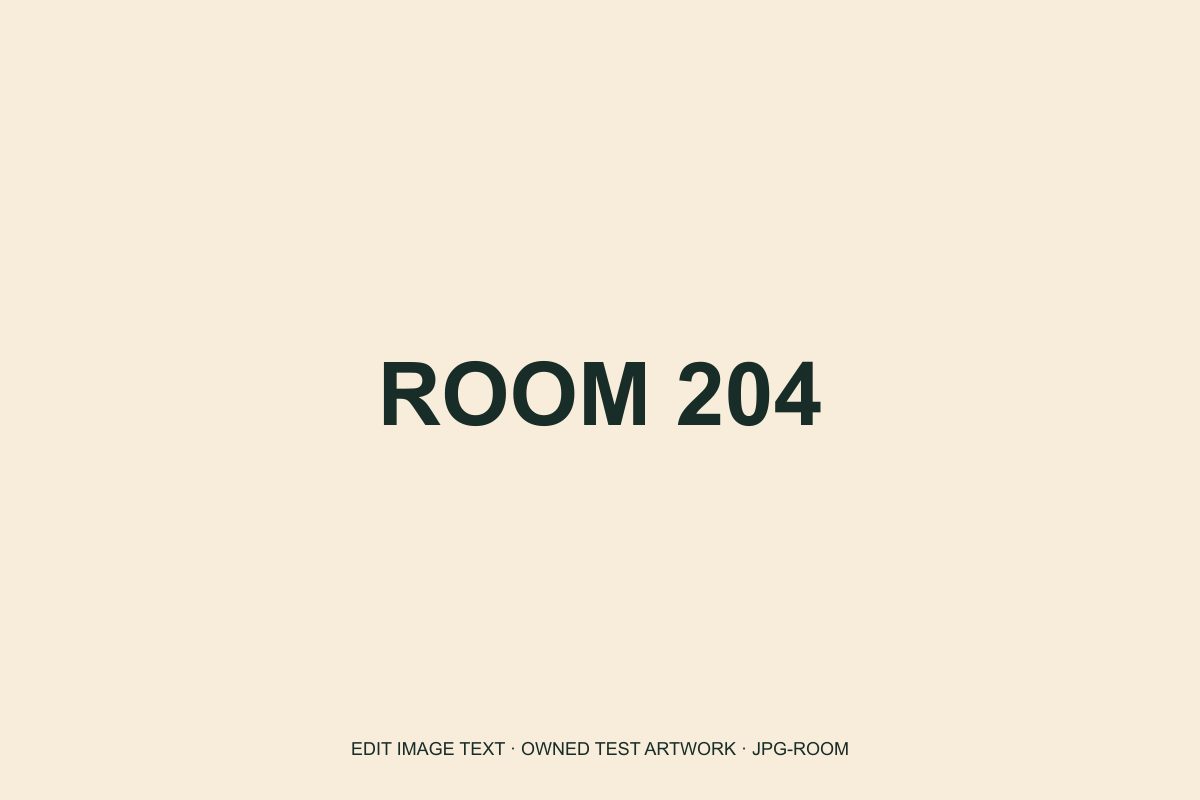
The steps below use the current JPG text editor and an existing published test: changing ROOM 204 to ROOM 310 in a compressed JPEG graphic. JPG and JPEG are two filename extensions for the same image format; the editing steps are identical.
Why can’t you click and retype text in a JPEG?
When a design is exported as JPEG, its text and background become one flat image. The file does not retain text boxes, font names or editable characters. JPEG compression may also soften the edges around letters.
If you still have the source design with editable text, change it there and export a fresh image. When only the JPEG remains, replacing a word means rebuilding the covered area and drawing new lettering. OCR is a different task: extracting characters gives you text to copy, rather than an edited picture with the original layout.
1. Start with the best original JPEG
Choose the largest, clearest copy you have. Avoid a screenshot of the JPEG or a version repeatedly forwarded through a messaging app. Extra compression can leave blocks and halos around small letters.
Sign in and upload a JPEG, PNG or WebP up to 10 MB. You do not need to convert a JPEG to PNG before uploading. That conversion cannot restore detail already lost. Keep an untouched copy for comparison, and use an image you have permission to edit.
2. Supply the complete old and new wording
Choose Replace text. In Text in the image, enter the phrase exactly as it appears, including capitals and punctuation. In Change it to, enter the intended replacement.
For the published example, the fields were:
| Field | Text |
| ----------------- | ---------- |
| Text in the image | ROOM 204 |
| Change it to | ROOM 310 |
Use the complete phrase rather than a single digit that might occur elsewhere. Start with one short change. Similar-length wording is easier to fit into the original space, although the letter widths can still differ.
This workflow targets words from the text you supply. It does not require selecting a detected text box or drawing a region. If the same phrase repeats in several places, identifying the intended occurrence can be less reliable.
3. Compare the result with the original JPEG
Generating a file does not establish that the edit is correct. Read the replacement at full size, then inspect the complete graphic.
The following images show an existing controlled test on owned artwork. The input was an actual 1200 × 800 JPEG, rather than a PNG renamed with a .jpg extension. The on-page after image is a web-optimized preview of the editor’s composited result.
Original JPEG: ROOM 204
Composited result: ROOM 310
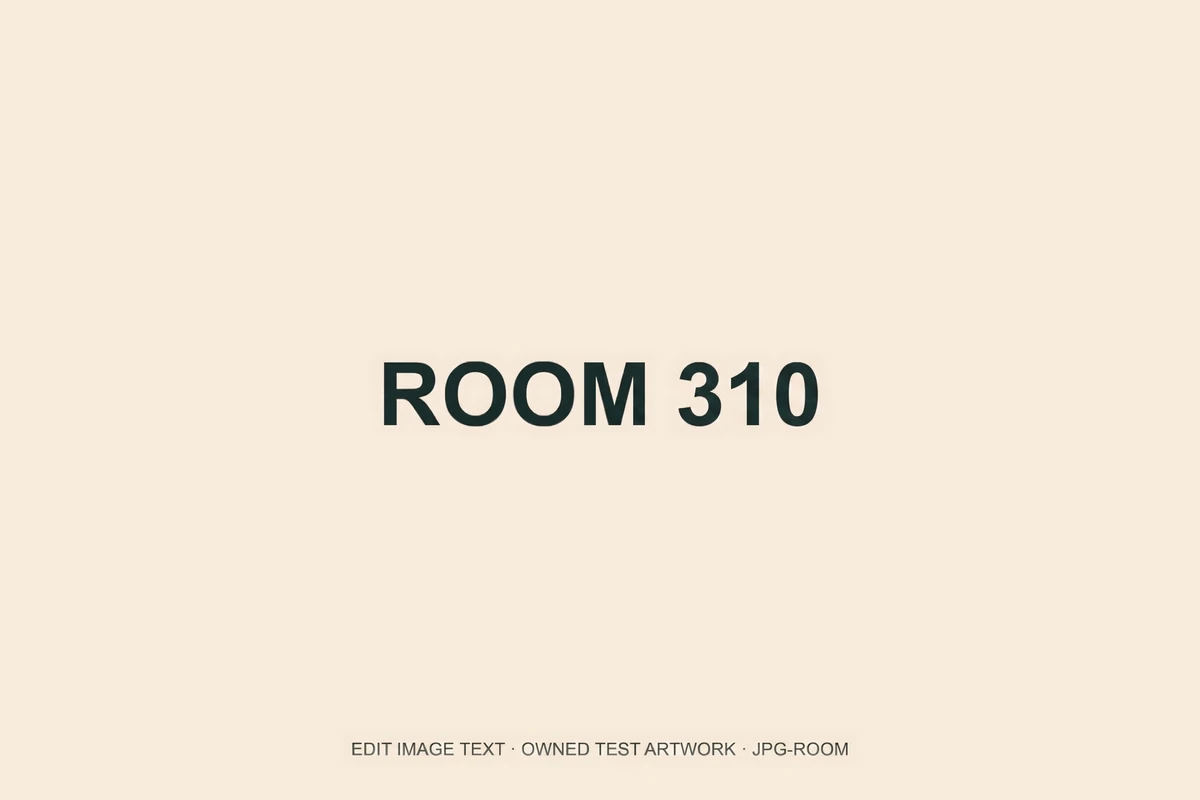
Existing Nano Banana Pro 2K test on owned flat artwork, not a customer submission or camera photo. The replacement has a different word width. This single result does not establish accuracy on tiny text, heavy compression or complex backgrounds.
The published record reports a 2528 × 1686 result and a 1.9% changed-area estimate. That estimate measures pixel differences, not spelling accuracy or exact font matching. The preview above is 1200 × 800; it is not the full-size model file. Inspect the comparison, original input and raw model output.
Before downloading, check:
- Wording: every character, capital, digit and punctuation mark.
- Lettering: stroke weight, baseline, spacing and the width of the new phrase.
- Background: halos, rectangular patches, broken lines or texture changes near the letters.
- Other details: nearby words, logos and the overall framing.
Use the slider, highlight and close-up views together. Background restoration can reuse the surrounding original when a change is contained, but the surface hidden by the old letters must still be estimated. Read more about matching the original lettering and checking background preservation.
4. Choose PNG or JPG for the final download
PNG export avoids another lossy JPEG encoding step. It does not recover missing source detail or undo changes introduced by AI. A larger output is also not proof that the original lettering became more accurate.
The editor offers a smaller JPG export when browser processing is available. Use it if the destination requires JPEG or file size matters, then check letter edges again. The composited JPG export uses white where the image is transparent.
Check the downloaded file’s actual dimensions. Fast uses the 1K model tier; a paid credit pack unlocks Pro 2K. Pixel dimensions depend on the model output and aspect ratio, so do not assume that the original dimensions will remain unchanged.
When is another editing method more suitable?
| Situation | Practical approach | | ---------------------------------------------------------------------- | ------------------------------------------------------------- | | You have the editable source design | Change its text layer and export again. | | Short text sits on a uniform background and you know the font | Cover and retype manually, checking the edges and alignment. | | You only have a flattened JPEG and want to try a localized replacement | Use the JPG editor, then review the lettering and background. | | You only need to copy the words | Use OCR rather than image text replacement. |
For brand-critical typography, dense small text or print-ready artwork, source files and manual review provide more control. Do not treat a successful generation as a substitute for checking the content.
Can I edit text in a JPEG for free?
New accounts get 1 free Fast edit at 1K after signing in, with no card required. One-time credit packs start at $3.90 for 8 edits and unlock Pro 2K. Both modes use 1 credit per edit, and purchased credits never expire. See current pricing before purchasing.
Does changing JPG to PNG make the letters editable?
No. Changing the file format leaves the text as pixels. PNG can avoid an additional lossy encoding step, but it does not create text layers, identify a font or restore compressed detail.
Can I replace all the text in a JPEG at once?
Start with one complete phrase. Rewriting a whole paragraph or several unrelated labels makes it harder to identify changes and check the layout. Tiny or unreadable letters may not provide enough visual detail for a suitable result.
Open the JPG text editor to try a short replacement, or see the main online editing guide for the general upload and download workflow.
Your image. A better choice of words.
Start with one short phrase, then review the lettering and background before you download.