
How to Change a Date on a Poster Without the Source File
Updated
Replace a date in your own poster or flyer image, then check digits, weekday, spacing and repeated dates. Includes an actual JUNE 12 to JUNE 19 test.
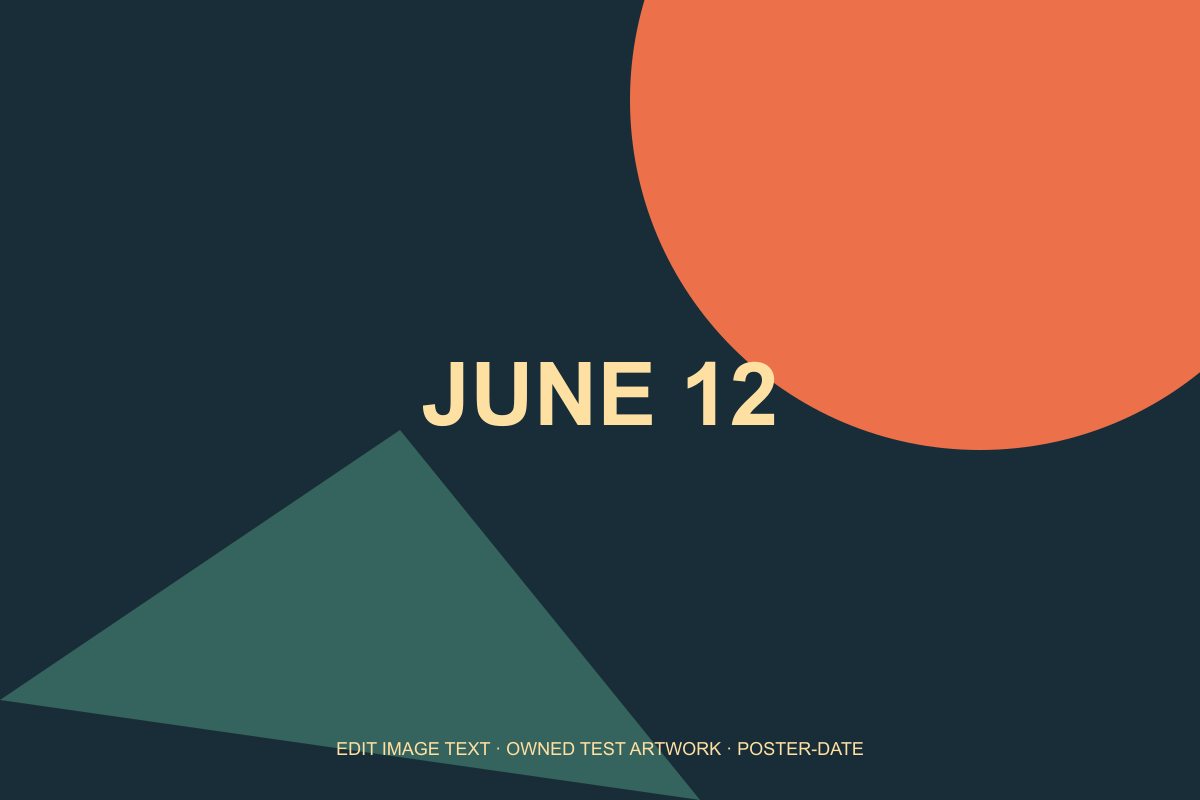
To change a date on a poster without the source file, upload the poster image, choose Replace text, and enter the complete old and new date. Compare the result before downloading. AI can attempt to repaint the date, but it does not validate the event calendar or guarantee that the surrounding design stays identical.
This workflow is for promotional artwork you own or have permission to edit: an event poster, workshop flyer or sale graphic. If the editable source design is available, change its text layer and export again. When only a flattened PNG, JPEG or WebP remains, the image date editor provides a way to try a short replacement.
1. Confirm the date before editing the image
Write down the correct month, day and year from your confirmed event details. If the poster includes a weekday, check that separately. The model does not know whether the event was rescheduled, whether a year was omitted intentionally or which date format your audience expects.
Also list where the old date appears. A poster may repeat it in the heading and footer, while your social image, registration page and calendar listing each have their own copy. Editing one phrase in one image does not update those other places.
Keep the original poster file. It is the reference you will use to inspect the lettering, background and nearby information after generation.
2. Upload the clearest poster image
Sign in and upload a PNG, JPEG or WebP up to 10 MB. Use the clearest original export you have, rather than a screenshot of a small preview or a repeatedly compressed message attachment.
Large, readable date lettering gives the model more visual detail to work with. Tiny footer text, crowded schedules and patterned backgrounds need closer review. If the date is not readable in the input, do not expect a larger generated image to recover the missing information reliably.
For JPEG-specific compression and export questions, see the JPEG editing guide.
3. Enter the complete old and new date
Choose Replace text. In Text in the image, copy the printed date exactly, including capitalization and punctuation. In Change it to, type the verified replacement.
Our published poster test used:
- Text in the image:
JUNE 12 - Change it to:
JUNE 19
The complete phrase gives the request more context than entering only 12. A number by itself might also occur in a year, address or other line. If exactly the same date appears several times, this version has no region selector to identify a specific occurrence; inspect every instance afterward.
Keep a similar date format when it remains clear to the audience. Longer month names, added years and date ranges can require more space. Similar character counts do not ensure equal widths: different digits and letters can still change the line length.
For example, changing JUNE 12 to SEPTEMBER 21 is a planning example, not a tested result. Before attempting it, check whether the text area has enough room. If it needs a new line, smaller type or a shifted illustration, editing the source layout gives you more control. The replacement-text diagnosis guide explains why letter shapes and spacing can change.
4. Review the actual date replacement
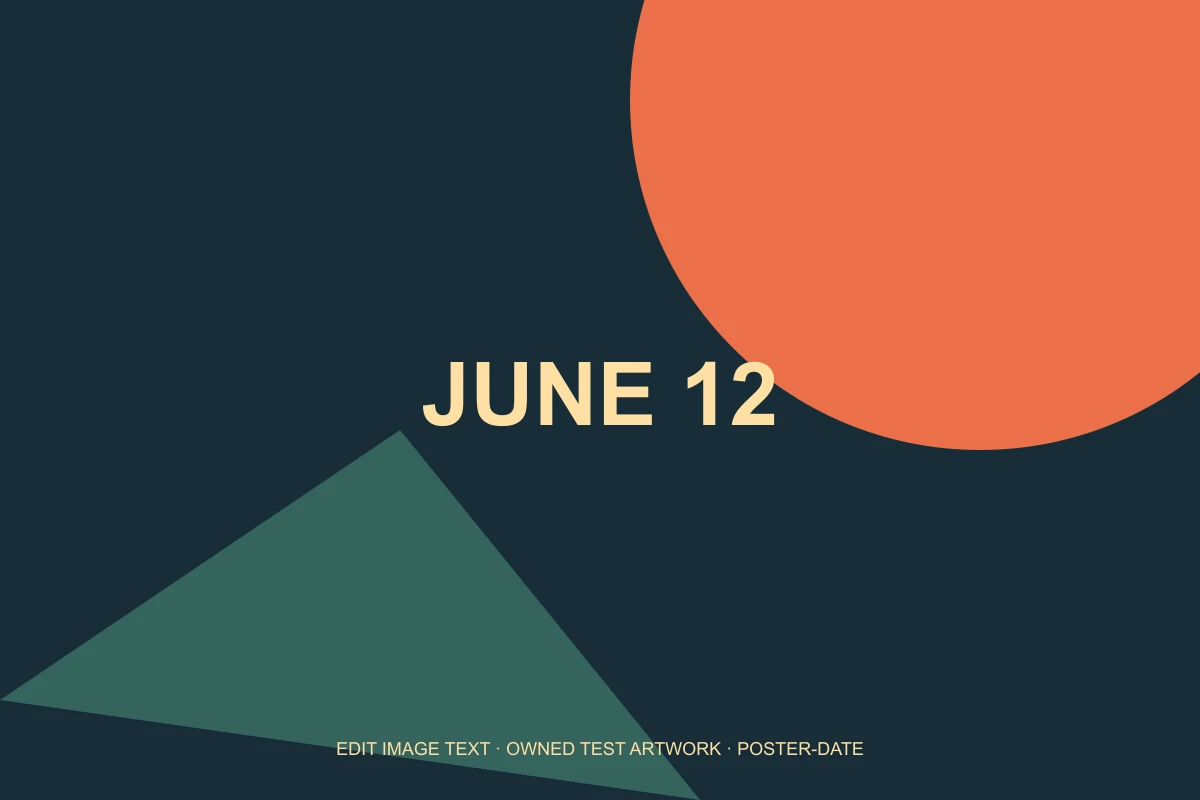
The comparison below comes from an existing controlled test on owned artwork. It changes JUNE 12 to JUNE 19; it is not a new test of a longer date, a weekday or a printed event schedule.
Before: JUNE 12
After: JUNE 19
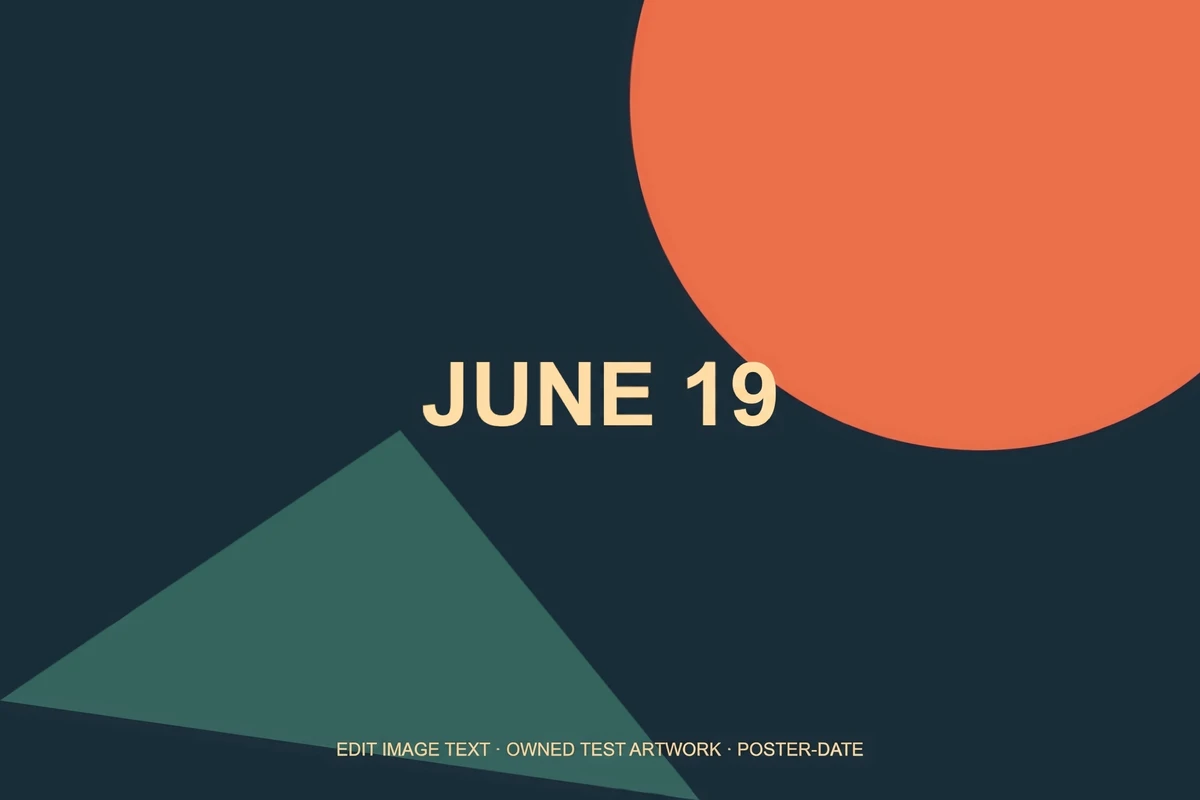
Existing Nano Banana Pro 2K test on owned flat artwork. The input was 1200 × 800; the model output was 2528 × 1686. Both displayed previews are 1200 × 800. This demonstrates one short date replacement, not exact typography, calendar validation or print readiness.
The record reports 41 seconds for that controlled request and a 2.1% pixel-difference estimate. Neither number measures calendar accuracy or guarantees the same result for another poster. Inspect the complete case, original input and unmodified model output, or read the test methodology.
Use the original/result slider, highlight and close-up views to check:
- The date: read the month, each digit, the year and any separators.
- The weekday: verify it against your confirmed event details; it is not automatically recalculated.
- The lettering: compare stroke weight, baseline, spacing and line breaks.
- The surrounding design: inspect nearby words, logos, shapes and texture.
- Other copies: check repeated dates in this image and update separate campaign assets yourself.
A small changed-area estimate is not proof that a date is correct. Background restoration can reuse the original around a contained edit, but the area under the old lettering still needs reconstruction. See the background review checks if you notice seams or changed texture.
5. Check the downloaded file before publishing or printing
Download only after the wording and image are suitable. Open the exported file and inspect it at the size you intend to use. Confirm that the complete date is readable and that no text has wrapped, clipped or crowded another element.
Fast uses the 1K model tier; a paid credit pack unlocks Pro 2K. Actual pixel dimensions depend on the model output and aspect ratio, so do not assume that the original dimensions remain unchanged. A larger export does not recover detail absent from the source image.
For printing, check the printer’s requested dimensions and layout requirements. A 2K model tier does not establish that a file is suitable for a large poster. For precise typography, dense schedules or a print master, use the original design file when possible.
Can I change a poster date for free?
New accounts get 1 free Fast edit at 1K after signing in, with no card required. One-time credit packs start at $3.90 for 8 edits and unlock Pro 2K. Each submitted edit uses 1 credit, and purchased credits never expire. Check current pricing before buying a pack.
Can I update several dates at once?
Start with one complete phrase so the result is easier to inspect. Repeated wording can be ambiguous, and editing one occurrence does not establish that all other occurrences were changed correctly. The tool does not automatically synchronize a poster, social post or event listing.
Will a longer date keep the original layout?
It may need different spacing or a line break. Match the original format when practical, and check the new line at full size. Our published example uses two short phrases of similar length; it does not establish how a much longer replacement will fit.
Is this a photo timestamp or document date editor?
This guide covers your own promotional artwork. It does not change photo metadata or the actual event details. Editing dates on receipts, tickets, certificates or other records is outside the site’s permitted use; see the Acceptable Use Policy.
Try a date replacement on your own poster. For headline and venue changes, explore the poster text editor; for the complete general interface walkthrough, read the online editing guide.
Your image. A better choice of words.
Start with one short phrase, then review the lettering and background before you download.