
How to Fix Misspelled Text in AI-Generated Images
Updated
Correct readable AI lettering with a supplied old phrase and exact replacement. Follow a controlled zero-to-O test and review every word and nearby detail.
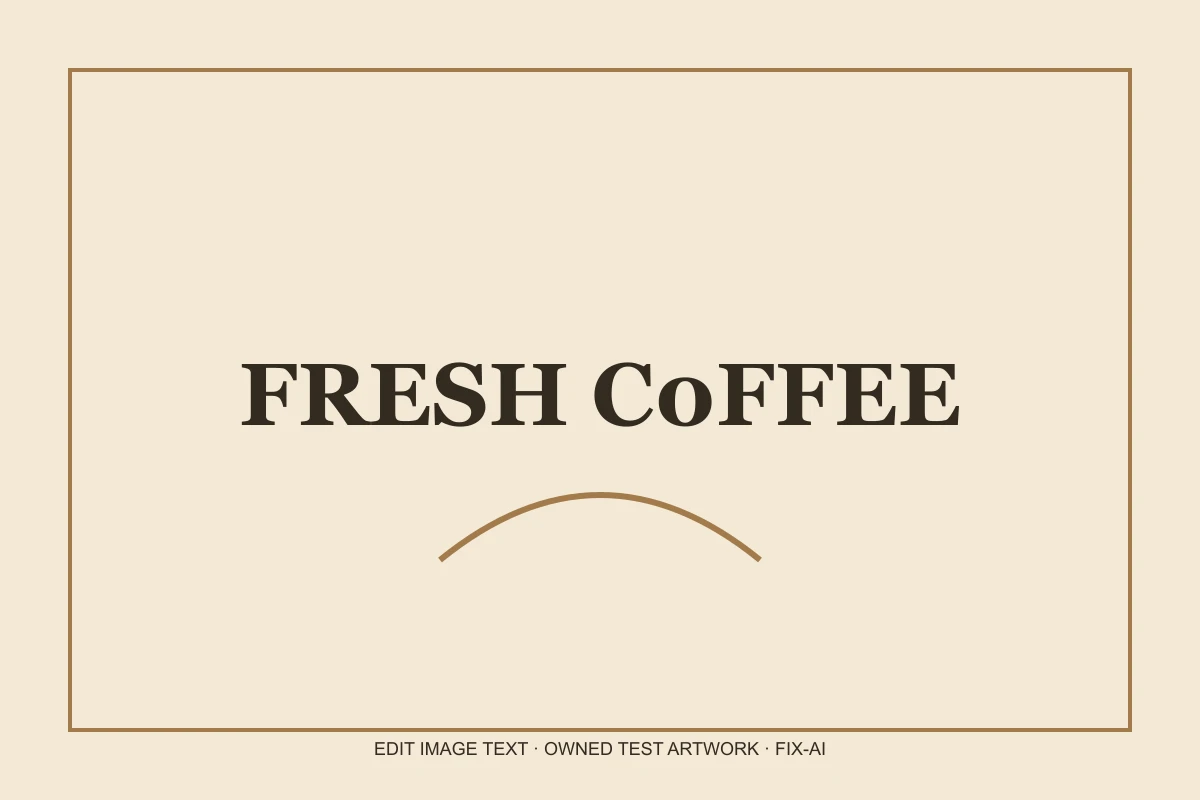
To fix readable misspelled text in an AI-generated image, choose Fix AI text, enter the visible old phrase and its exact correction, then compare the result before downloading. The editor attempts to repaint the phrase you identify. It does not detect all text, infer the spelling you intended or proofread the complete image.
This guide focuses on a heading or label you can still read: an extra character, a misspelled word or a digit where you intended a letter. If your design was exported from an editable file and you still have that file, correct the text layer there. For a general exported-image correction, see the image typo guide. For this workflow, open the Fix AI text editor.
1. Decide whether the lettering is a usable target
Read the source phrase before starting. Can you identify the word and distinguish the visible wrong character? If so, you can supply an old phrase and a specific replacement. Keep an untouched copy of the original to review the entire result later.
A heading that looks vaguely like writing but has no identifiable characters is a harder task. Guessing its spelling does not provide a reliable target. A nearby readable word may give useful context if it uniquely identifies the phrase, but it is not the same as selecting a region. The current editor has no manual text-region selector or automatic full-image OCR interface.
When the target cannot be identified, return to a clearer source or an editable design when available. Rebuilding the text separately can provide more control than making repeated requests with guessed old wording.
2. Copy the visible mistake into the old-text field
Sign in, upload a PNG, JPEG or WebP up to 10 MB, and choose Fix AI text. Enter the complete visible word or short phrase in Text in the image.
Copy what appears in the picture rather than silently correcting it in that first field. For a readable letter-versus-digit mistake, the old input may need the actual digit. Do not assume every 0 means O, or every 1 means I: numbers may be intentional in a product name, code or date.
Include capitals, spaces and punctuation. A complete phrase is a clearer target than a single wrong character, particularly when the same character appears elsewhere. Identical repeated phrases remain ambiguous; supplying more text does not guarantee that only the occurrence you intended will change.
3. Supply the complete intended wording
In Change it to, type exactly what the phrase should say. Check the spelling yourself before submitting. For names, prices or dates, use your confirmed source information; the model does not validate those details for you.
Our published controlled test supplied:
- Text in the image:
FRESH C0FFEE, with a zero in the second word. - Change it to:
FRESH COFFEE, with the intended letter O.
Start with one short phrase rather than several unrelated lines. Similar-length wording asks for less space, but equal character counts do not establish equal widths. A corrected letter can change spacing or the total line length. The replacement-text diagnosis guide explains those visual differences.
Do not use the replacement field to ask for other design changes. It supplies literal text, not a request to redesign the scene or discover additional spelling errors.
4. Inspect the existing zero-to-O correction
The images below show an existing Fix AI mode test on owned controlled artwork. We prepared the source to contain FRESH C0FFEE and supplied FRESH COFFEE as the correction. The test demonstrates this explicit request; it is not proof that the input was produced by a particular image-generation model or that arbitrary AI lettering will be repaired.
Before: FRESH C0FFEE
After: FRESH COFFEE
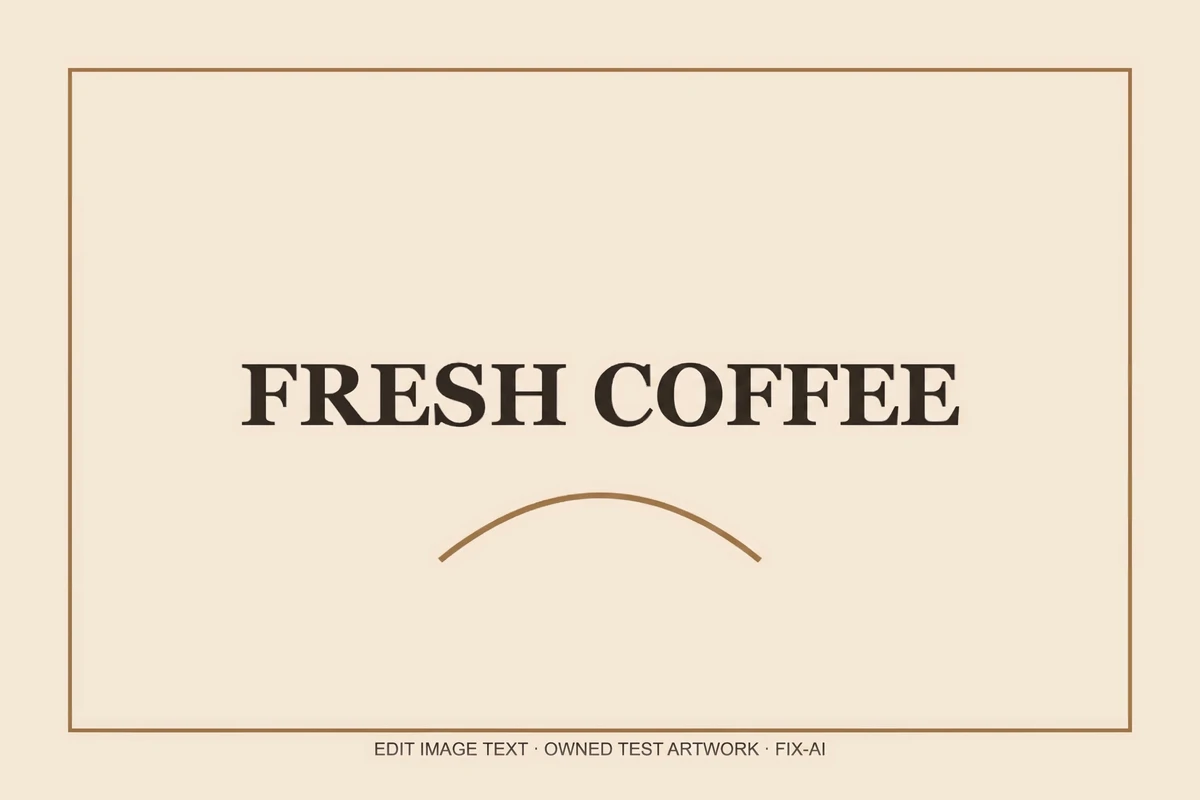
Existing Nano Banana Pro 2K correction on owned artwork. The input and displayed previews are 1200 × 800; the recorded model output is 2528 × 1686. The intended phrase is visible in this result, but other text was not automatically proofread and exact typography was not established.
The recorded request took 54.6 seconds and had a 4.7% pixel-difference estimate. Those historical values describe one sample, not a completion-time promise, spelling score or font-matching score. A new Fast or Pro request can differ. Inspect the case, original input and unmodified model output, and read the test methodology before comparing these figures with another image.
5. Read every word, then review the composition
First read the replacement character by character. Check letter order, duplicated or missing characters, digits, punctuation and spaces. A familiar-looking word is easy to accept without noticing another error.
Then inspect the complete image:
- Other wording: compare every other line with the original; the correction pass can alter nearby text.
- Lettering: check shape, stroke weight, baseline, spacing and line breaks. Visual similarity is not an identified font.
- Background and objects: look for changed texture, color patches, moved edges or altered logos around the words.
- Downloaded file: check actual dimensions, read it at full size, and inspect it again at its intended display size.
The comparison, change highlight and close-up help you locate differences. They do not understand whether a phrase is spelled correctly. Background restoration can reuse the surrounding original when differences are contained, but it is a heuristic rather than a guarantee that all other pixels remain identical. See the background-preservation checks.
Download only a result you have reviewed. A returned image establishes technical completion, not an acceptable correction. If the word or composition is wrong, reject that result. Another submitted edit uses another credit and is not guaranteed to improve it.
Is Fix AI different from replacing or removing text?
Fix AI text uses the old phrase and a supplied correction, with an instruction focused on malformed lettering. Replace text also uses old and new wording and suits a known typo or wording change in an exported image. Neither automatically checks the whole design.
Remove text uses the old phrase without replacement wording and asks for an estimated background. To choose that path, read the remove-versus-replace guide or open the text removal tool.
For covering information in an image, the separate local text-hiding tool offers a black box, pixelation or blur without an AI upload. Its workflow differs from generative correction and background reconstruction. The comparison of hiding styles explains what to check before sharing.
Can I fix AI text for free?
New accounts get 1 free Fast edit at 1K after signing in, with no card required. One-time credit packs start at $3.90 for 8 edits and unlock Pro 2K. Each submitted edit uses 1 credit, and purchased credits never expire. Technical failures are refunded automatically; a technically completed result still needs your quality review. See current pricing.
Fast and Pro are model tiers, not guarantees that every character will be correct. Output dimensions depend on the model and aspect ratio, and a larger download does not recover lettering detail missing from the original.
Try one explicit correction in your own image, keeping the original for a complete comparison.
Your image. A better choice of words.
Start with one short phrase, then review the lettering and background before you download.