
Remove Text or Replace It: How to Choose
Updated
Choose image text replacement, AI correction, background reconstruction or a local cover. Inspect a real removal result where SALE is gone but a tone patch remains.
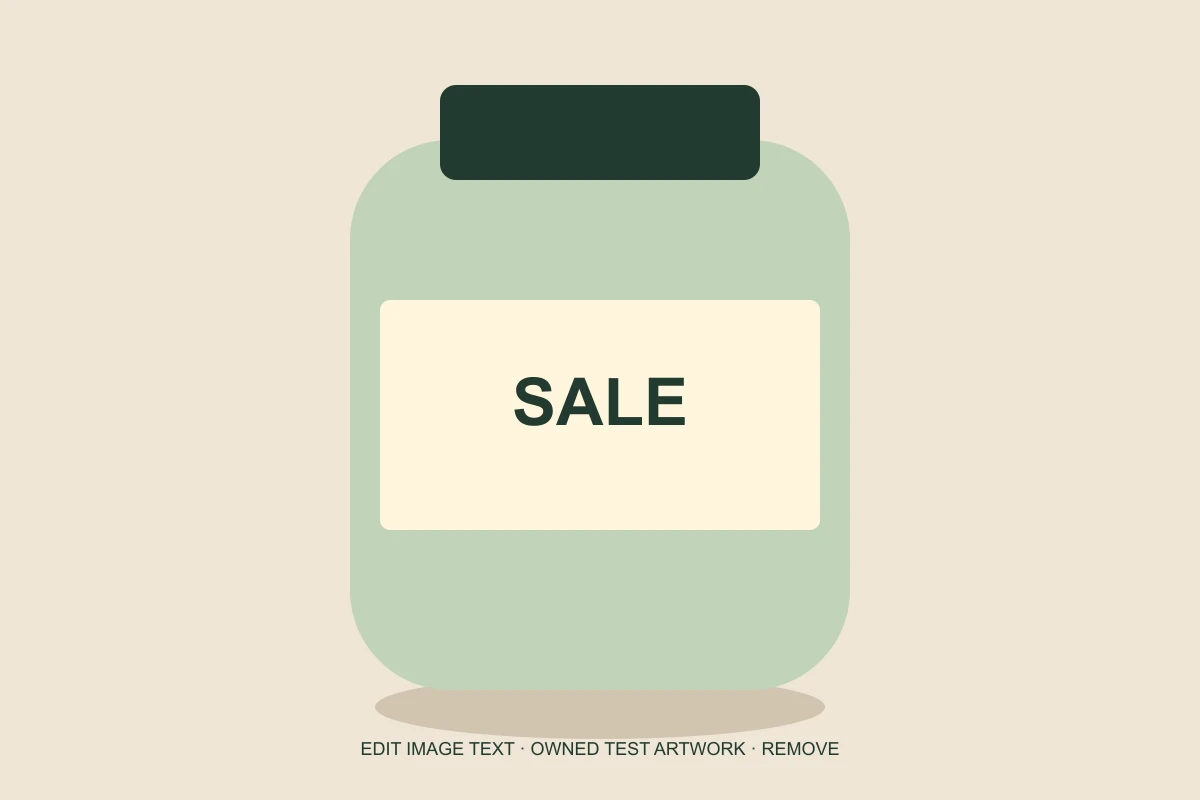
Replace text when the image needs new words. Remove text when the phrase should disappear and the background needs rebuilding. For covering private information, use a local solid cover instead of generative cleanup. These goals need different instructions and different result checks.
Start with what the finished image should show, rather than the name of an editing feature. This guide helps you choose a workflow, using an existing controlled removal test as evidence. The earlier correction-and-removal report records both historical tests in a shorter comparison.
First decide what should be left in the image
Use these questions before uploading:
- Should different words remain in the same place? Choose Replace text. Supply both the complete old phrase and the intended new wording.
- Is a readable phrase in AI artwork malformed or misspelled? Fix AI text provides an explicit correction workflow. You still identify the old phrase and supply the correct words; it does not proofread the whole picture.
- Should the area contain no words? Choose Remove text. Supply the phrase to remove and inspect the reconstructed background.
- Should information be covered before sharing? Use the local text-covering tool, with a solid cover for the marked area. This has a different purpose from making a creative cleanup look natural.
If you still have the editable source design, changing or deleting its text layer usually gives you more control. The workflows here operate on a flattened image, where visible text is part of the pixels.
Replace wording instead of removing and retyping it
For a new product name, event date or corrected headline, the goal is a new phrase. Replacing it directly gives the model the old and new wording together. A removal request asks for an empty surface; it does not preserve an editable text box for a later typing step.
Keep the complete original phrase, including punctuation and capitalization. Consider the width of the new wording, not only its character count. A longer phrase can need different spacing or wrapping. The replacement-text diagnosis guide explains those layout and letter-shape checks.
For a known spelling mistake in an exported design, follow the image typo guide. If the issue is a malformed word in AI-generated artwork, use the AI text correction guide. Neither workflow automatically finds or validates every word.
Remove text only when you want an empty surface
Remove mode asks the image model to estimate what could fill the area covered by the named phrase. It does not reveal an original hidden layer. The surface behind the letters is unavailable in a flattened file, so the fill can look plausible without being the actual original background.
Sign in, upload your own PNG, JPEG or WebP up to 10 MB, then choose Remove text. In Text in the image, enter the complete phrase to remove. There is no Change it to field in this mode.
For the published example, the submitted phrase was SALE, with no replacement. The model was asked to remove that word from owned flat artwork. This does not test removing every word, targeting one of several identical phrases or reconstructing a complex texture.
A real result: SALE is absent, but the fill still needs review
The before and after below come from an existing controlled Nano Banana Pro 2K request. They are not customer files or new generations made for this article.
Before: SALE on the label
After: no word, but a tone patch
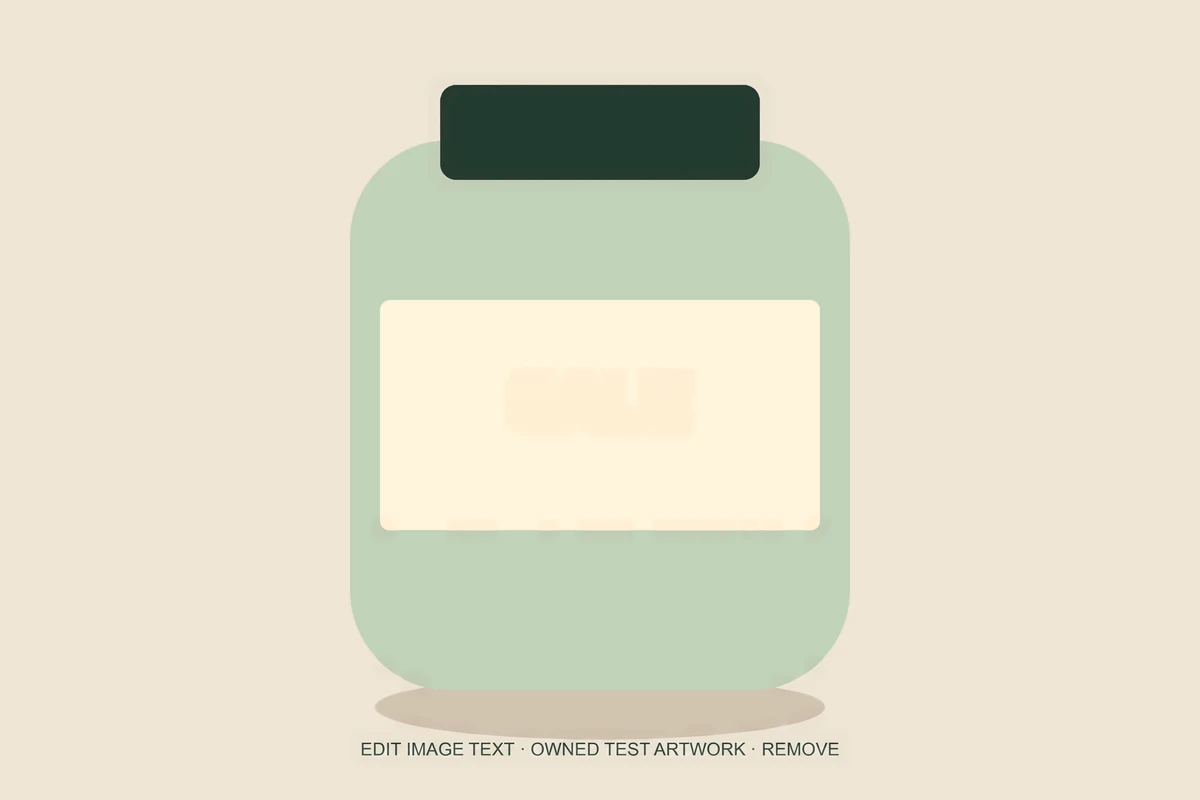
Existing controlled test on owned artwork. The input was 1200 × 800 and the model output was 2528 × 1686. These displayed previews are both 1200 × 800. The phrase is absent, but a faint rectangular tone difference remains where it was removed.
The record reports 48.6 seconds for this request and a 1.6% pixel-difference estimate. Neither figure measures the quality of the fill. A small changed area can still contain a visible defect, as this label shows. Inspect the full case, original input and unmodified model output.
This example supports a limited conclusion: one supplied word was removed from this graphic. It does not establish seamless removal on photos, repeating patterns or text crossing an object edge. The test methodology separates technical completion from visual review.
Check the fill before accepting the result
Use the original/result comparison and inspect the cleared region at full size. Then view the whole image at the size where you intend to use it.
- Read the region: confirm that no intended letters or fragments remain.
- Compare the tone: look for a rectangle, halo or different-colored patch around the old word.
- Follow edges and texture: check for broken lines, repeated patterns or invented surface detail.
- Read neighboring text: a successful removal does not establish that other words or logos stayed unchanged.
- Inspect the downloaded file: confirm its framing, actual dimensions and suitability for the final display or print size.
The editor can reuse the surrounding original when the measured change is contained. That restoration does not recover what was under the letters, and it does not establish that the generated fill is acceptable. See the background-preservation checks if the cleared area looks different.
Cover information when the goal is to hide it
Generative cleanup sends an image for AI processing and tries to make the cleared area look like part of a scene. For covering information before sharing, use the separate local tool rather than treating a natural-looking fill as a privacy guarantee.
The local tool lets you mark a region manually and choose a black box, pixelation or blur. A solid box replaces the marked pixels in the exported image. Blur and pixelation retain transformed information from the source, so do not assume that softened lettering makes private content safe to share.
You still need to check the complete image for uncovered text, small fragments, reflections and other copies. Editing an export does not change the original or files you already sent. The text-covering methods guide explains the separate local workflow.
What if the word appears more than once?
This version has no region selector for AI replacement or removal. A unique complete phrase can help identify the target, but identical repeated phrases can remain ambiguous. Inspect every occurrence in the result. If one precise instance must change, return to the editable source when possible.
Do not treat removing one phrase as a whole-image cleanup. Each additional submitted edit costs another credit, and a retry does not guarantee a cleaner fill. Keep the untouched original so you can reject an unsuitable result.
What does a removal request cost?
New accounts get 1 free Fast edit at 1K after signing in, with no card required. One-time packs start at $3.90 for 8 edits and unlock Pro 2K. Each submitted edit uses 1 credit, and purchased credits never expire. The separate local covering tool needs no account or credits. See current pricing.
A technically completed request can still return an image you do not want to use. Technical generation failures are refunded automatically; a returned result with a tone patch is not automatically classified as a technical failure. Pro 2K is a model tier, not a promise of exact output dimensions or a seamless background.
Use images you own or have permission to edit. Do not remove ownership marks, licensing information or attribution without authorization. When the intended outcome is clear, open Remove text, correct known AI lettering, or cover a region locally.
Your image. A better choice of words.
Start with one short phrase, then review the lettering and background before you download.